Photo Print

Order intake · Windows 10/11 x64 · release coming soon

Photo Order

The customer sends photos from their phone with a QR code. The order arrives sorted, and the counter is freed from USB sticks, cables and forwarded files.

3
steps for the customer
0
apps to install
0
accounts or passwords
1
button at the counter

The customer · on their phone

The studio

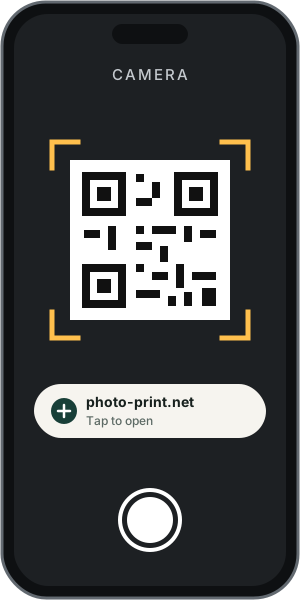
1Phone with the camera pointed at the studio QR code
Scans the QR codeWith the phone's ordinary camera.
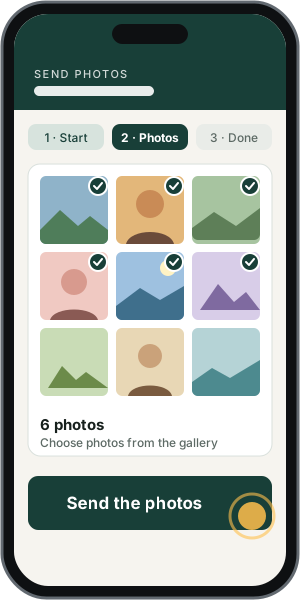
2Photo selection page with a Send the photos button
Chooses the photosFrom the gallery, with one tap.
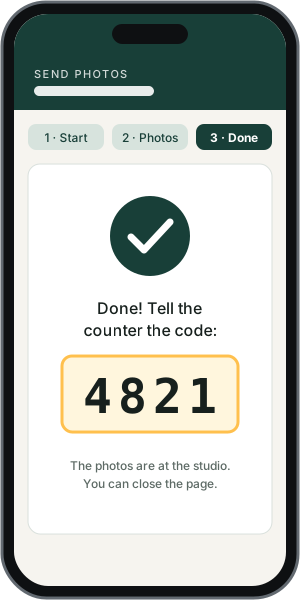
3Confirmation with a four-digit code for the counter
Gets a codeAnd tells it to the counter. That is all.
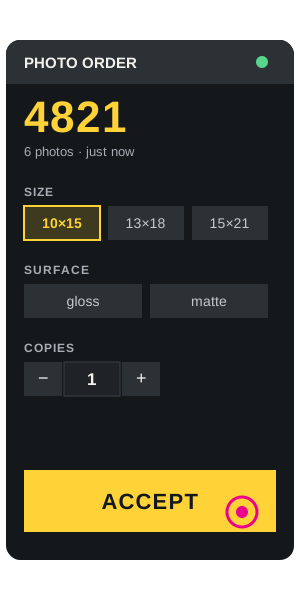
4The counter: order 4821, size 10×15 and an ACCEPT button
The counter acceptsThe size is preset. One button: ACCEPT.
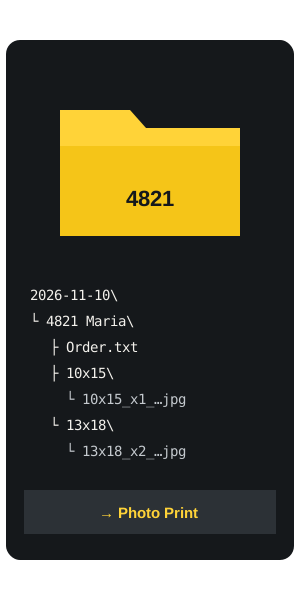
5The finished order folder, sorted by size
Ready to printIn a folder by date, customer and size.
01

Order flow

The customer installs nothing. Photos are uploaded through the phone's browser, and the program checks for new orders every 30 seconds and shows a notification.

StepWhereAction
1phonestudio QR code, photo selection
2Photo Ordernotification: order number and file count
3countersize, surface, copies, accept or refuse
4stationsaved to folders, loaded into Photo Print
02

Counter

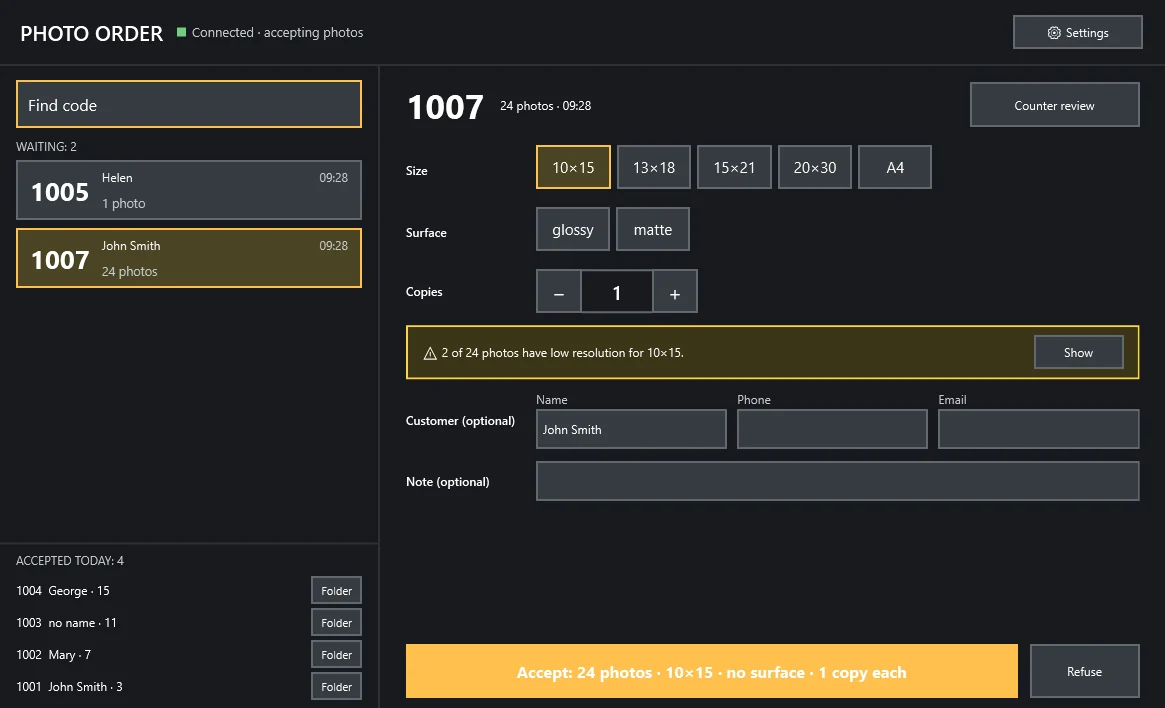
Accepting an order takes seconds. Attributes are set on the operator's screen or together with the customer, on the same or another computer.

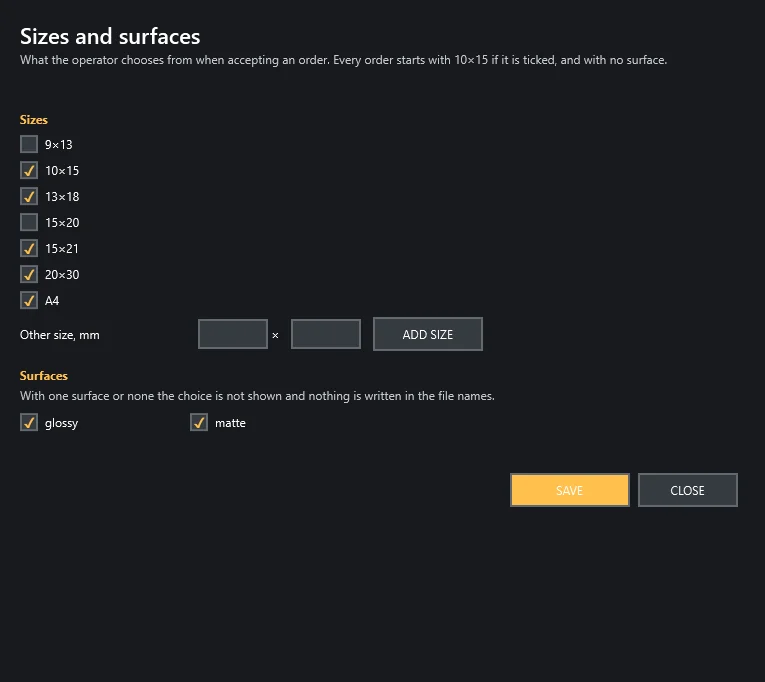
Sizesset by the studio, in your own order
Surfacegloss, matte and up to 6 of your own
Groupsdifferent sizes and copies in one order
Customername, phone, e-mail, note, optional
Qualitywarning when the resolution is low for the chosen size
Photo Order: waiting orders, size, surface and copies
Sizes and surfaces setup
Sizes and surfacesThe list is set by the studio.
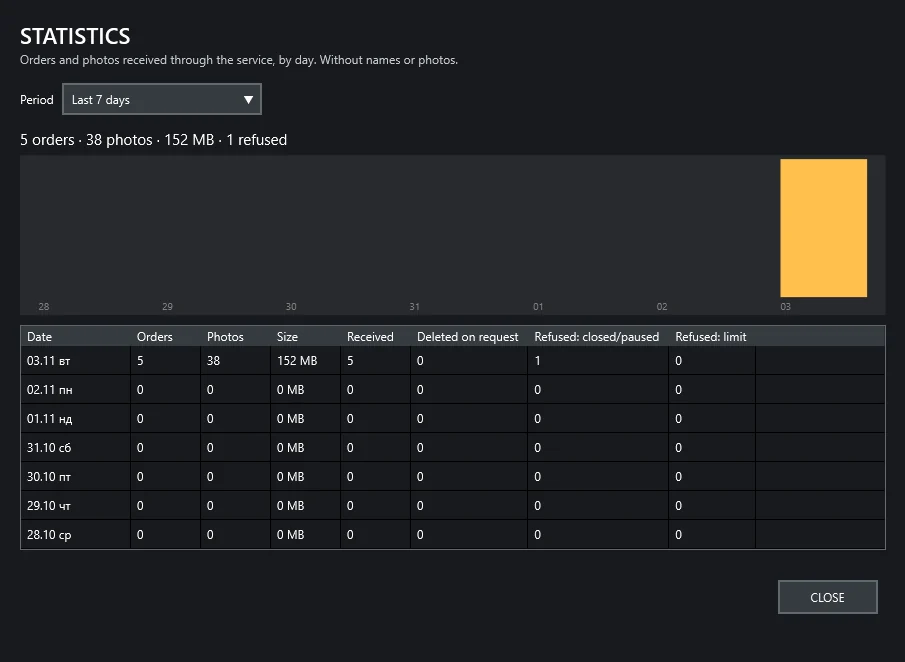
Order statistics by day
StatisticsOrders, photos and volume by day.
03

Saving

Every order enters production sorted by date, customer and size, with no manual sorting.

Folderdate\code name\size\
File namesize_xcopies_name
SummaryOrder.txt
Incoming\
└─ 2026-11-09\
   └─ 1007 John Carter\
      ├─ Order.txt
      ├─ 10x15\
      │  ├─ 10x15_x1_IMG_0412.jpg
      │  └─ 10x15_x2_IMG_0413.jpg
      └─ 13x18\
         └─ 13x18_x1_IMG_0420.jpg
04

Data and retention

Uploaded photos stay in the service only for a limited time and are deleted after acceptance and the retention period.

Kept in the service3 days
Deletion on requestin the service and on the station
LanguagesBulgarian, English
Internetrequired for order intake
05

Working with Photo Print

The programs work on their own. Photo Order folders load straight into Photo Print through Add Photos.

Connectiona shared folder, no integration
Subfoldersshown when adding photos

Trial access and subscription